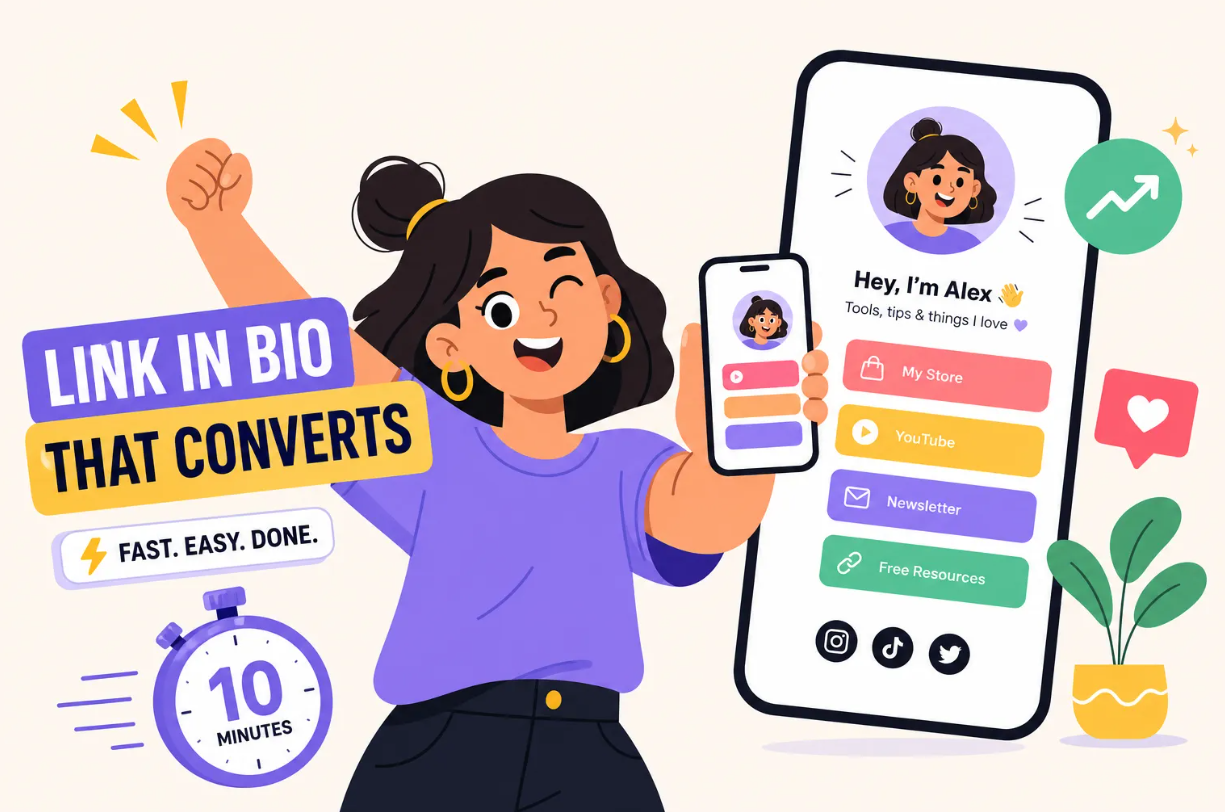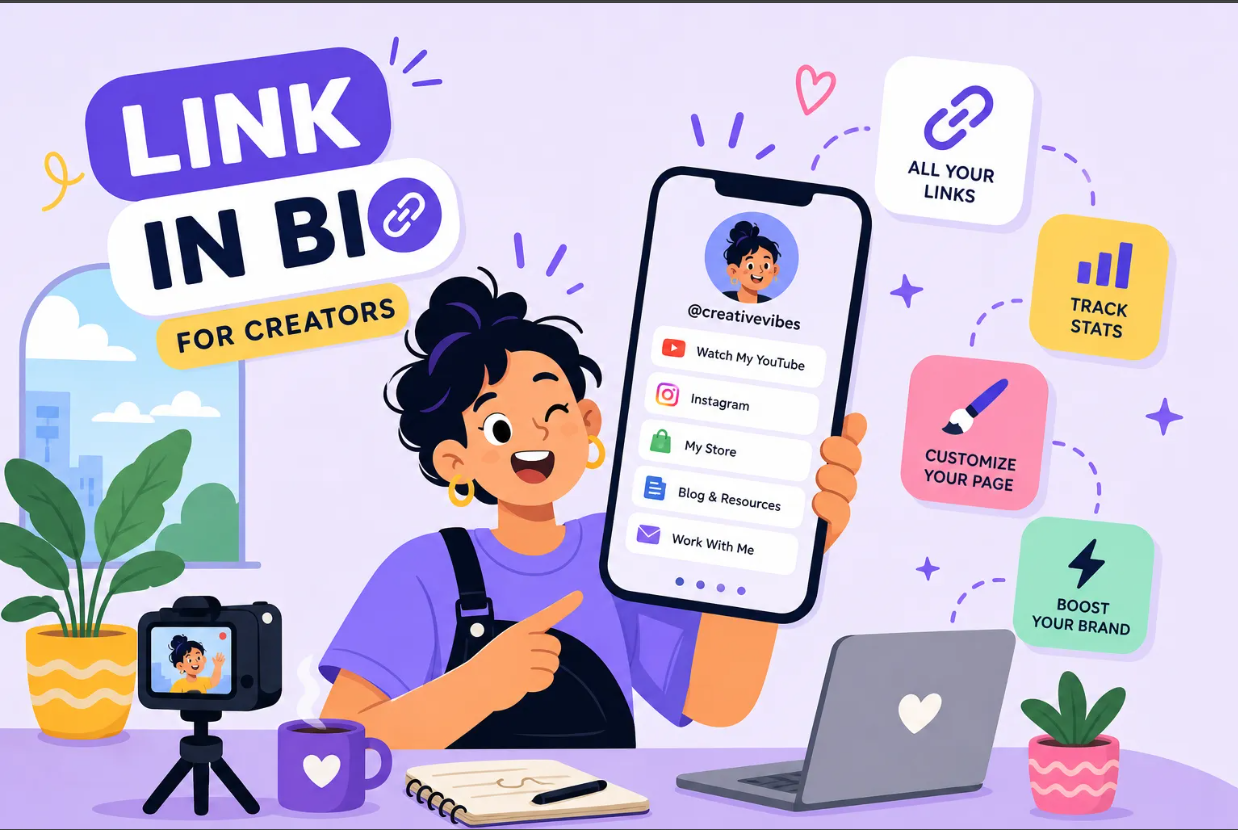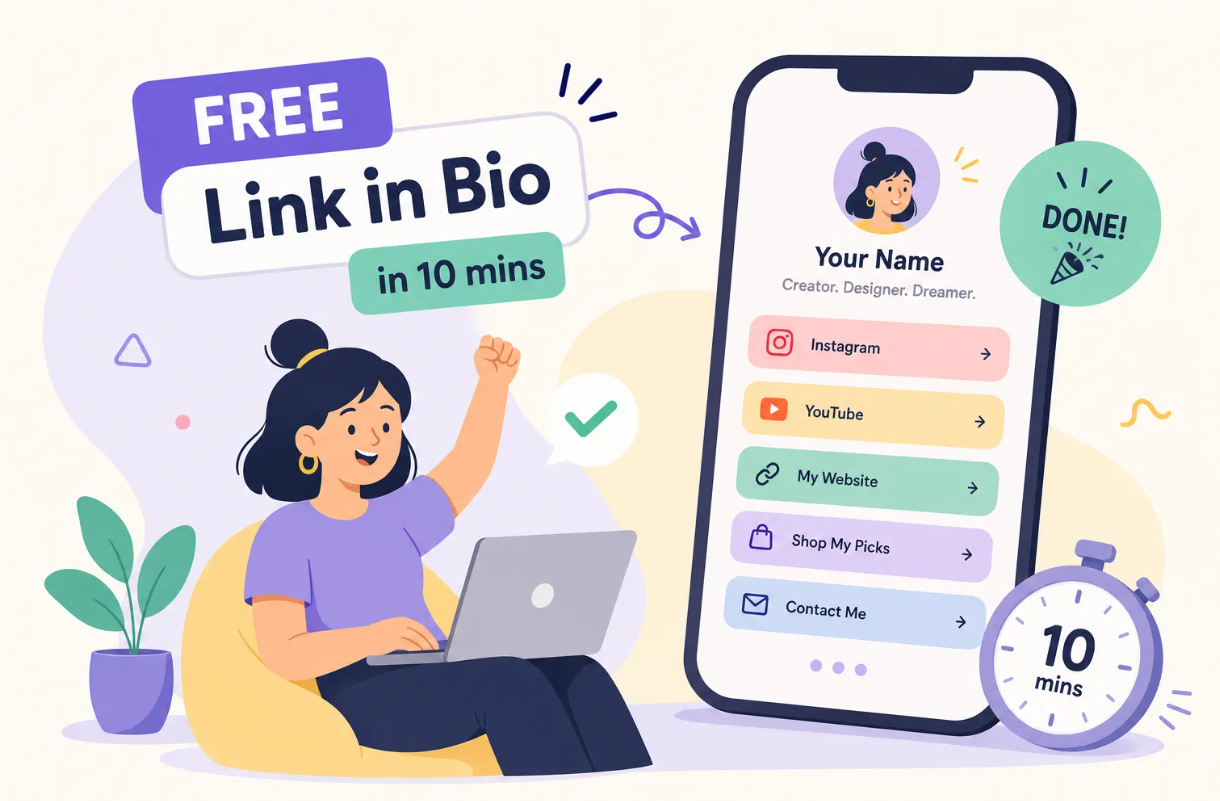




If you've been wondering how to create a link in bio page for Instagram, you're not alone, and the fix is simpler than most people expect. Instagram now supports up to five native bio links, but managing a rotating list of separate URLs is clunky, untracked, and easy for followers to miss. Creators, marketers, and small business owners with a shop, a newsletter, a latest video, a booking page, and a podcast still run into the same core problem: no single destination that brings everything together.
A link-in-bio page solves this. It's a mobile-optimized landing page that lives at one URL and houses every destination you want your followers to reach. Instead of juggling multiple links and losing momentum, you send everyone to one clean, branded page and let them choose their next step. This tutorial walks you through building one from scratch using Binko, a platform that combines a bio page builder, URL shortener, QR code generator, and analytics in one place. Follow these steps and you can have a live, trackable page connected to your Instagram profile by the end of this session.
What to Include on Your Link-in-Bio Page
Your Top 3-5 Destinations, Not Everything
Bio pages with 3 to 5 links consistently see higher click-through rates than longer lists. When visitors see too many options, they experience decision fatigue and often click nothing at all. The goal isn't to list every page on your website; it's to guide a new follower toward the one action that matters most right now.
Before you add a single link, ask yourself: what do I most want a first-time visitor to do today? That answer becomes your primary CTA. Everything else is secondary. Common top-link choices include a latest YouTube video, a shop page, a newsletter signup, a booking link, or a key affiliate resource.
Supporting Elements That Build Trust Instantly
A stranger landing on your bio page makes a split-second judgment. Three elements reduce friction before they even read your links: a profile photo or logo, a one-line statement about who you are and what they get, and a small piece of social proof. That social proof could be a follower count, a press mention, or a results stat, anything that tells a new visitor they're in the right place.
Binko's page builder includes a wide range of widgets, profile images, value statements, social icons, and more, so you can build out these trust elements without touching a single line of code. Everything is ready to drag, drop, and publish.
One Element Most Creators Forget: Email Capture
Your Instagram following belongs to Instagram. Your email list belongs to you. Adding a short subscriber form to your bio page turns passive followers into an owned audience you can reach regardless of algorithm changes. It's one of the highest-leverage steps many creators skip when setting up their first bio link page for Instagram.
Binko includes built-in email collection, so you don't need a separate email tool or a third-party integration just to capture signups. The form embeds directly in your page and you can export your contacts from the dashboard whenever you need them.
How to Create a Link in Bio Page for Instagram: Account Setup and Layout
.png)
Create a Free Account in Under Two Minutes
Go to Binko, hit the sign-up button, and enter your handle or brand name. No design skills needed. The free plan gives you a fully functional bio page with a clean Binko subdomain you can start sharing immediately. Unlike single-purpose linkinbio tools that lock core features behind a paywall, Binko's free tier is genuinely usable from day one.
Pick a Template That Matches Your Brand
Binko offers customizable themes built for mobile, which matters because the vast majority of bio-link traffic comes from phones. Browse the available templates and choose one that already matches your Instagram color palette. The closer the starting point is to your brand, the less time you spend tweaking.
Mobile-first design isn't optional here. A desktop-beautiful page that's awkward on a phone will cost you clicks before a visitor even reads your links. Binko's templates are built with mobile in mind, so you don't have to build for mobile separately.
Set Your Custom URL
On the free plan, your bio page gets a clean Binko subdomain, something like binko.online/yourname. That URL is shareable immediately and looks professional. If you're on the Pro plan and want a fully branded domain like links.yourbrand.com, you add the domain in Binko's settings, then point a CNAME record at Binko's hostname through your domain registrar.
For most creators just starting out, the Binko subdomain is plenty. You can always upgrade to a custom domain later without rebuilding the page.
Add Your Links, Widgets, and Profile Details
Add and Label Your Links with Outcome-Based Copy
In the Binko dashboard, tap "Add link," paste your URL, and write the button label. That label is your CTA, and it does most of the conversion work. Specific, action-oriented labels consistently outperform vague ones, replace "Website" or "More" with copy that tells the visitor exactly what they'll get.
Think "Shop bestsellers," "Watch the tutorial," "Join my newsletter," or "Download the free guide." Each label should complete the sentence: "After I click, I will..."
Arrange Links in Priority Order
Most visitors tap the first button they see and don't scroll much further. Put your most important action at the very top, and structure the rest of the page as a descending priority list. Binko's drag-and-drop reordering makes it easy to shift links around when your campaign priorities change.
A clean structure to follow: one primary CTA block at the top, then two to four supporting links below it grouped by intent, keeping the total under five links unless you have a strong reason to add more.
Add Your Profile Image and Bio Text
Upload the same headshot or logo you use on Instagram so visitors feel immediate visual continuity. Below it, write one sentence that tells a new visitor exactly who you are and what they gain from clicking around, something like "Helping small brands grow on social, one post at a time." This combination of recognizable image and clear positioning reduces bounce before the person even looks at your links.
Design Your Bio Link Page for Instagram to Get More Clicks
Visual Hierarchy: Make the Primary Action Obvious
Use a high-contrast button color for your top CTA and softer styling for secondary links. This gives the eye a clear entry point and keeps the page from feeling like an equal-weight menu. Your primary button should look meaningfully different from every other element on the page.
Keep whitespace generous so the layout breathes instead of cramming everything together. Mobile tap targets also need to be large enough to tap without zooming or mis-tapping. A button that's too small on a phone will lose clicks from impatient users who don't try twice.
CTAs That Convert: What the Data Says
Outcome-based labels work because they tell visitors what happens after they click, not just where the link goes. High-performing examples from real bio pages include: "Book a call," "Download the guide," "Claim the offer," "Browse new arrivals," "Listen to the episode," and "Get the free template."
Match your CTA language to your Instagram content so the bio link page feels like a natural continuation of what your followers already expect from you. If your content is educational, "Watch the tutorial" fits. If it's product-driven, "Shop the collection" converts better than "Store."
Keep the Page Fast and Lightweight
A slow-loading bio page loses clicks before they happen. Heavy embeds, unoptimized images, and bloated scripts all add load time on mobile connections. Avoid stacking unnecessary embeds; keep images compressed and your link count focused. A lean page, fewer elements, faster load, performs better on mobile than one packed with widgets for their own sake.
Connect Tracking So Every Click Is Counted
Use Binko's Built-in Analytics Dashboard
Binko's analytics dashboard tracks key engagement metrics out of the box, open the analytics tab after your page goes live and start looking for patterns. Which links does your audience tap most? What devices are they using? Is traffic coming directly from Instagram or from other sources? This data is the foundation for every optimization decision you'll make going forward.
Add UTM Parameters for Deeper Google Analytics Tracking
UTMs are short tags you add to a destination URL so Google Analytics 4 knows exactly where a visitor came from. A simple example for Instagram bio traffic looks like this: ?utm_source=instagram&utm_medium=bio&utm_campaign=spring2026
Without UTMs, GA4 often misclassifies Instagram bio traffic as "Direct" because clicks happen inside Instagram's in-app browser. Add UTM parameters to the destination URLs inside each Binko link, not to your Binko page URL itself. That way GA4 can attribute individual link clicks to specific campaigns and show you what visitors do after they arrive on your site.
Why Combining Both Gives You the Full Picture
Binko analytics answers the first question: are people clicking, and which links are they choosing? UTM tracking in GA4 answers the second question: are those visitors converting after they land? Together, these two layers tell you whether your bio page is doing its job and whether traffic is turning into real outcomes, purchases, signups, bookings.
Add Your Bio Page Link to Your Instagram Profile
Step-by-Step for iOS and Android
Open Instagram and tap your profile icon in the bottom-right corner. From there:
- Tap Edit profile
- Tap Links
- Tap Add external link
- Paste your Binko page URL and add an optional title
- Tap Done
Instagram supports up to five native bio links, but a single Binko link gives you one clean, trackable destination that houses everything in one place rather than scattering links across Instagram's bio link list.
One common mistake: pasting the URL into the Bio text field instead of the Links section. Text in the Bio field is not clickable, use the Links section so the URL becomes an actual tappable link on your profile.
Pair Your Instagram Bio Text with Your Link
Add a short sentence in the Bio text field that tells followers what they'll find when they tap: "All my links below" or "Shop, watch, and subscribe" are simple and clear. This small nudge removes ambiguity and increases the chance someone taps at all. When you update your featured destination, update this text too so the two stay aligned.
You're One Setup Away from a Page That Works Around the Clock
Now you know how to create a link in bio page for Instagram, and how to make it work harder than a plain URL ever could. Building one comes down to five moves: plan your links, build on Binko, customize the design, set up tracking, and add the URL to your profile. Most of these steps require no technical skills or design background, and you can complete them in a single session.
The real payoff is that this is a one-time setup with ongoing returns. Every follower who visits your profile from this point forward sees a clean, branded bio link page with clear options instead of a jumbled list of rotating links. That consistency compounds over time.
Start for free on Binko. Your followers are already visiting your profile, give them somewhere worth clicking.
FAQ
How do I create a link in bio page for Instagram?
Sign up at Binko (no credit card needed), choose a username, add your links, customize the design, and publish. The whole process takes about 10 minutes. Then go to Instagram, tap Edit Profile, tap Links, and paste your Binko URL.
Can I have more than one link in my Instagram bio?
Yes, Instagram now supports up to five native bio links. However, a single Binko link-in-bio page gives you one clean, trackable destination that houses all your links in one place, making it easier to manage and analyze.
Is Binko really free for Instagram bio links?
Yes. Binko's free plan includes a bio page builder with 49+ widgets, click analytics by country and device, a dynamic QR code, email capture, and a URL shortener. No credit card required to sign up.
How many links should I put on my Instagram bio page?
Keep it to 3-5 links. Pages with fewer, focused links get higher click-through rates than long lists. Put your most important action at the top and group supporting links below it.
How do I track clicks from my Instagram bio link?
Binko's built-in analytics track per-link clicks by country, device, browser, and referrer from the moment you publish. For deeper tracking in Google Analytics, add UTM parameters to your destination URLs (e.g., ?utm_source=instagram&utm_medium=bio).
Can I add a QR code to my Instagram bio page?
Yes. Binko includes a dynamic QR code on its free plan. You can customize the colors, add your logo, and download it for print materials. The QR code links directly to your bio page.
Do I need a custom domain for my Instagram bio link?
No. Binko's free plan gives you a clean subdomain (like binko.online/yourname) that looks professional and is ready to share. Custom domains are available on the Pro plan if you want a fully branded URL later.
How is Binko different from Linktree for Instagram?
Binko's free plan includes detailed analytics (country, device, referrer), a dynamic QR code, a built-in URL shortener, and email capture, all of which Linktree locks behind paid plans. Binko also offers 49+ widget options compared to Linktree's basic link format.
What should I write in my Instagram bio to support my link?
Add a short sentence that tells followers what they'll find when they tap: "All my links below" or "Shop, watch, and subscribe" are simple and clear. This nudge removes ambiguity and increases taps.
Can I use Binko's email capture on my Instagram bio page?
Yes. Binko's free plan includes a built-in email subscriber form that embeds directly in your bio page. Followers can join your list without leaving your page, and you can export contacts from the dashboard anytime.